table of contents
- Limitaciones actuales de la aplicación:
- Características de la aplicación móvil:
- Utilizar extensiones del navegador
- Use Developer Tools
- Use Userscripts or Command-Line Tools
- Windows Users:
- Mac Users:
- Legal Considerations:
- Desktop Website:
- Mobile App:
- Organization Tips:
- Extension Not Working:
- Poor Video Quality:
- Download Failures:
- Script Errors:
- Screen Recording Issues:
- Official Alternatives:
- Best Practices:
- Safe Downloading Tips:
If you’ve purchased exclusive content on Fansly, you might wonder if you can download it for offline viewing. The short answer is that Fansly doesn’t provide an official download feature for purchased media. However, there are several safe and practical methods to save your paid content legally.
This guide will walk you through simple, step-by-step methods to download your purchased videos and photos from Fansly. We’ll cover everything from browser extensions to screen recording, plus important legal considerations you need to know.
How to Check If Fansly Allows Downloading Purchased Media
Currently, Fansly does not offer an official download option for purchased content on either their mobile app or desktop website. This policy applies to all types of media including:
- Photos and image galleries
- Video content
- Live stream recordings
- Audio messages
- Premium posts
Unlike some other platforms, Fansly keeps all content streaming-only to protect creators’ intellectual property rights. You can view your purchased content anytime through your account, but there’s no built-in “Download” button.
Official Fansly Support Position: Fansly’s Terms of Service state that users can access purchased content through their platform but cannot download files directly. This is designed to prevent unauthorized redistribution of creators’ work.
Can You Download Purchased Content in the Fansly App?
The Fansly mobile app does not support downloading purchased content for offline viewing. Here’s what you need to know:
Current App Limitations:
- No download button on mobile app
- No offline viewing mode
- Content requires internet connection
- No “Save to Device” option
Mobile App Features:
- Stream purchased content
- View content in full quality
- Access your purchase history
- Interact with creators
The mobile app is designed for streaming only, which means you’ll need to use desktop methods if you want to save your purchased media.
How to Download Purchased Media on Desktop
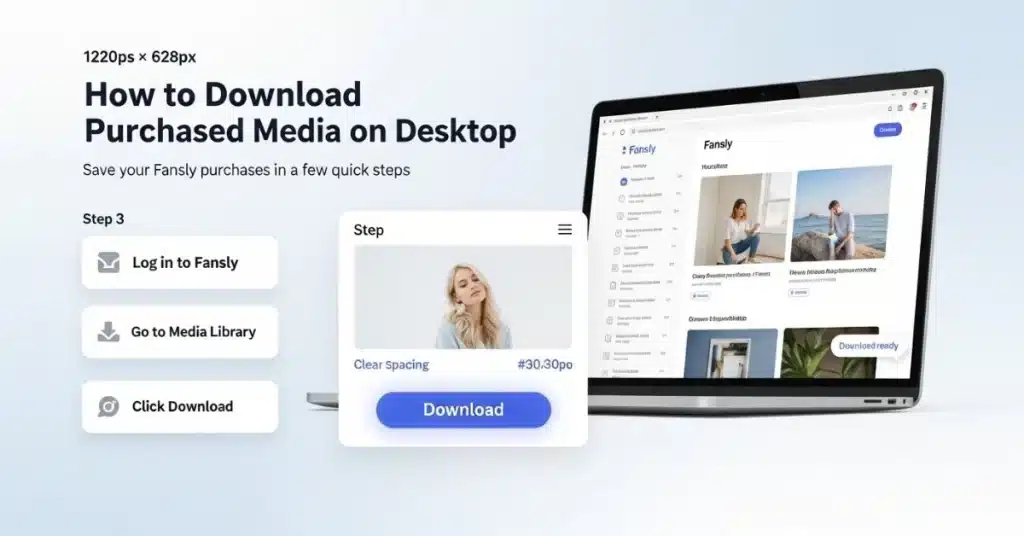
Here are the most effective methods to download your purchased Fansly content on desktop:
Use Browser Extensions
Popular Extensions:
- Fansly Downloader (Chrome Extension)
- Video Download Helper (Firefox/Chrome)
- Download Manager browser extensions
Step-by-Step Installation:
- Install the Extension:
- Go to Chrome Web Store or Firefox Add-ons
- Search for “Fansly Downloader” or “Video DownloadHelper”
- Click “Add to Chrome” or “Add to Firefox”
- Confirm installation
- Using the Extension:
- Log into your Fansly account
- Navigate to your purchased content
- Look for the download icon that appears
- Click to download the media file
- Choose your save location
Pros:
- Easy to use for beginners
- Works with most browsers
- Automatic quality detection
- Batch downloading options
Cons:
- May not work with all content types
- Extensions can stop working with site updates
- Some require payment for full features
Use Developer Tools
This method works by finding the direct media URLs through your browser’s developer tools.
Step-by-Step Process:
- Open Developer Tools:
- Right-click on the page
- Select “Inspect” or “Inspect Element“
- Or press F12 on your keyboard
- Navigate to Network Tab:
- Click on the “Network” tab
- Check the “Media” filter
- Refresh the page or play the content
- Find Media Files:
- Look for video (.mp4) or image (.jpg/.png) files
- Right-click on the file URL
- Select “Open in new tab”
- Download the Content:
- In the new tab, right-click the media
- Select “Save video as” or “Save image as”
- Choose your download location
Important Note: This method requires some technical knowledge and may not work with heavily encrypted content.
Use Userscripts or Command-Line Tools
Popular Tools:
- fansly-downloader (GitHub project)
- Python-based downloaders
- Custom userscripts
GitHub Fansly Downloader:
- Download the Tool:
- Visit GitHub.com/Avnsx/fansly-downloader
- Download the latest release
- Extract files to a folder
- Setup Process:
- Install Python if not already installed
- Run the executable file
- Follow the setup instructions
- Enter your Fansly credentials
- Download Content:
- Select the creator or specific content
- Choose download options
- Start the download process
Safety Warnings:
- Only download from trusted sources
- Scan files for viruses
- Use at your own risk
- Keep tools updated
How to Save Purchased Media via Screen or Media Recording
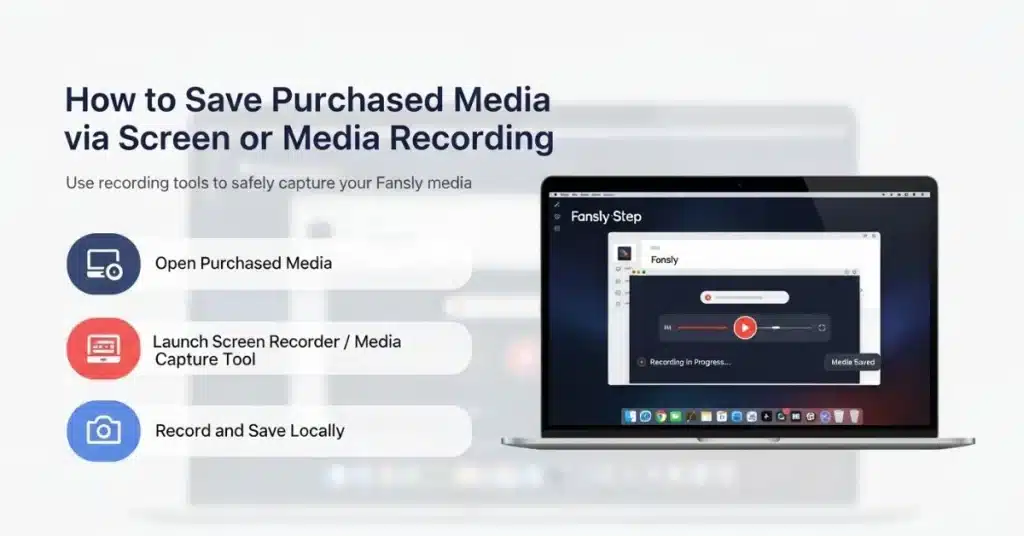
Screen recording is a reliable method that works with any content you can view:
Windows Users:
- Using Windows Game Bar:
- Press Windows + G
- Click the record button
- Play your purchased content
- Stop recording when finished
- Using OBS Studio:
- Download OBS Studio (free)
- Set up screen capture
- Configure audio settings
- Record your content playback
Mac Users:
- Using QuickTime:
- Open QuickTime Player
- Select “New Screen Recording”
- Choose audio source
- Start recording and play content
Tips for Quality Recording:
- Use highest quality settings
- Ensure stable internet connection
- Record in fullscreen mode
- Check audio levels before recording
Is It Legal and Allowed by Fansly?
Legal Considerations:
What’s Generally Allowed:
- Downloading content you’ve legitimately purchased
- Personal use and private viewing
- Creating backup copies for personal use
What’s Prohibited:
- Sharing downloaded content with others
- Selling or distributing purchased media
- Using content for commercial purposes
- Violating creators’ copyright
Fansly’s Terms of Service:
- Users can access purchased content through the platform
- Downloading may violate terms of service
- Account suspension possible for violations
- Respect creators’ intellectual property
Ethical Guidelines:
- Always respect content creators
- Don’t share personal content publicly
- Support creators through legitimate purchases
- Follow platform rules and guidelines
Where to Find Your Purchased Media in Fansly
Desktop Website:
- Log into your Fansly account
- Click on your profile icon
- Select “Purchases” or “My Collection”
- Browse by creator or date
- Click on content to view
Mobile App:
- Open the Fansly app
- Tap the menu icon
- Select “Purchases”
- Choose the content you want to view
- Tap to open and stream
Organization Tips:
- Use the search function to find specific creators
- Sort by date or content type
- Create personal bookmarks for favorites
- Check purchase history regularly
Troubleshooting Common Download Issues
Extension Not Working:
- Update your browser
- Reinstall the extension
- Check if Fansly updated their site
- Try a different extension
Poor Video Quality:
- Check your internet connection
- Ensure extension settings are correct
- Try downloading at different times
- Verify the original content quality
Download Failures:
- Clear browser cache and cookies
- Disable other extensions temporarily
- Try using incognito/private mode
- Check available storage space
Script Errors:
- Update Python and dependencies
- Check GitHub for latest version
- Verify login credentials
- Review error messages carefully
Screen Recording Issues:
- Update recording software
- Check audio settings
- Ensure sufficient storage space
- Close unnecessary programs
Alternatives and Best Practices
Official Alternatives:
- Request from Creators: Many creators are willing to send files directly
- Custom Content: Ask creators about downloadable versions
- Creator Platforms: Some creators offer downloads on other platforms
Best Practices:
- Always purchase content legally
- Respect creators’ wishes about downloads
- Keep downloaded content private
- Support creators through tips and purchases
- Stay updated on platform policies
Safe Downloading Tips:
- Use reputable tools only
- Scan downloads for malware
- Keep software updated
- Backup important content
- Use VPN for additional privacy
Frequently Asked Questions
Conclusion
While Fansly doesn’t provide official download options for purchased media, there are several practical methods to save your content for offline viewing. Browser extensions offer the easiest solution for most users, while screen recording provides a reliable backup method.
Remember to always respect content creators’ rights and use downloaded content responsibly. Never share purchased material with others, and consider supporting your favorite creators through legitimate purchases and tips.
The key to successful downloading is using the right combination of methods, staying updated with the latest tools, and following legal and ethical guidelines. Whether you choose browser extensions, developer tools, or screen recording, make sure to prioritize safety and respect for creators’ work.
Ready to start downloading your purchased Fansly content? Try the browser extension method first, and don’t forget to bookmark this guide for future reference!